EyeX 2.0.7, the app for Dualtron and Rovoron scooters: everything new
EyeX 2.0.7 is the current version on iPhone. Compatible screens, settings and speed limiting, the Lūba assistant, firmware updates, BMS data, GPS, widgets and Apple Watch: here is what the app does and how to use it.

Benjamin Gayaud
12 min read
What's new
EyeX 2.0.7: settings, Lūba and firmware from your phone
The key points
EyeX is the app we develop at FōhzShop for Dualtron and Rovoron electric scooters. It connects to the scooter's screen over Bluetooth. From your phone, you set the scooter up, keep an eye on its condition and protect it against theft[1]. It is free, with no subscription and no paid features.
Version 2.0.7 came out on the App Store on 2 November 2026, and it is still the current version on 17 November 2026[1]. The very first version was released there on 4 November 2025[1]. In the app, 2.0.7 announces itself as a major update: it adds an assistant, display firmware updates, widgets and an Apple Watch app. On Android, Google Play still offers 2.0.6[2].
2 Nov 2026
release of version 2.0.7 on iPhone
18
versions released on the App Store in a year
52
compatible Dualtron and Rovoron models
26
languages available in the app
- Lūba, an assistant that reads your scooter's settings, explains them and changes them when you ask.
- Firmware updates for EYA, EY4, EY3 and EY2 displays, step by step, with recovery after an interruption.
- Setting up a brand-new display in a few taps, without losing your rides.
- A full-screen ride screen and the road speed limit sign.
- More BMS data: battery state of health, charge cycles, protection history.
- Widgets, the Live Activity, the Dynamic Island and an Apple Watch app.
- A fix worth knowing about: the 24 and 25 km/h speed limiting values were swapped before 2.0.7.
Which screens and which scooters are compatible?
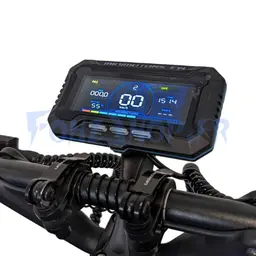
EyeX connects to the display, the screen mounted on the handlebars. So you need a screen with Bluetooth. The App Store listing says so clearly: the app is compatible exclusively with Dualtron and Rovoron scooters fitted with a compatible Bluetooth screen, that is the EY3 Connect, the EY4, the EYA and Minimotors screens with Bluetooth connectivity[1]. The EyeX website lists 52 of these models: 43 Dualtron, from the Mini to the Thunder 3, and 9 Rovoron, from the Cute to the S7.
The app recognises your scooter's model. It only offers the settings that actually exist on your display, your firmware and your model. “Reset settings” and “Meter Nickname”, for example, only appear on the Dualtron Sonic Alien and Sonic Oriens, as in the Minimotors app. To identify your screen, our article on EY2, EY3, EY4 and EYA displays explains how they differ.
Can EyeX damage my scooter?
No. EyeX talks to the scooter through the Bluetooth protocol of Minimotors, the maker of Dualtron, and only changes the settings you change yourself.
Can you connect several scooters?
Yes. Add as many vehicles as you like to your account. Each one keeps its own settings, its own page and its own statistics.
Which settings can you change from your phone?
Once connected, you change the scooter's parameters from your phone, without digging through the display's menus. In 2.0.7, all the settings are gathered in the Settings tab, sorted into four parts: Machine, Screen, Lighting and LEDs. Tap a row to change it. The more technical settings are explained in one sentence, just below.
- Riding modes, power and acceleration latency[1].
- Braking, ABS and the electromagnetic brake[1].
- Speed limits, cruise control and speed limiting at 20, 24 or 25 km/h[1].
- Limiting on startup and the dedicated Bluetooth remote[1].
- Motor settings, torque, TCS and audible alerts[1].
- Lighting, LEDs, their animations and colours, and screen customisation[1].
- The battery, odometer calibration and BMS protection[1].
What is new in the settings
2.0.7 adds the power-on mode, to choose whether the scooter starts in parking or neutral, from firmware 1.1.0. The Dualtron Sonic Alien and Sonic Oriens gain the current assist level, from 0 to 5. On scooters fitted with a sensor, the motor temperature is shown and a “Motor overheat protection” switch appears. On the EY2 and EY3, you choose what the screen shows next to the battery: range, odometer or trip. On 4.x firmware, Default limit, Auto limit on startup, Long press to limit and Limit remote are no longer greyed out.
How can Lūba, the assistant, help you?
Lūba is the big new feature in 2.0.7. Lūba has its own tab, and you write to Lūba as you would to a mechanic, in your own words. Lūba knows every setting and every model, analyses your scooter, changes your settings on request and helps with mechanical issues[1]. Lūba also knows every screen in the app and the specifications of your model.
Understanding your scooter
Lūba reads the settings of the connected scooter, live. That way Lūba can explain a limited speed, a lack of power or braking that is too strong, based on what is actually set.
Helping with mechanics
Lūba gives you the checks to carry out, warns you when you should stop riding and suggests the right part for your model, even with no scooter connected.
Changing your settings
Ask Lūba to switch to Sport mode or turn your LEDs red. Each value is shown before and after, and only the options your display accepts are offered.
An example conversation. You write “My scooter feels sluggish when pulling away”. Lūba reads your settings, sees that the acceleration latency is set to 4 seconds and explains that this is what causes the feeling. If you ask, Lūba brings it down to 2 seconds, and the response becomes more direct. Lūba never touches anything while you are riding.
For braking that is getting weaker, Lūba first checks your settings, then moves on to workshop checks such as the pads, the discs or bleeding the brakes. The advice comes from notes approved by the FōhzShop team.
If Lūba advises you to stop riding, follow that advice. For a repair, see our list of authorised repairers. If the scooter was bought from us, the warranties and after-sales page explains what to do.
How do you update the display firmware?
Firmware updates for EYA, EY4, EY3 and EY2 displays have been rewritten and switched on in 2.0.7. They run step by step, resume after an interruption and can repair a stuck display[1]. The updates come straight from Minimotors. EyeX compares the version installed on your display with the latest one available, and shows you the number, size and date of the new one.
- Connect the scooter, then tap the microchip icon at the top of the Settings tab.
- Check that the scooter is stationary and charged to at least 20%.
- Start the update. Stay close to the scooter and keep EyeX open: going back is blocked during the operation.
- Follow the steps on screen: reading the display, downloading the firmware, connecting to the display, erasing the old firmware, writing the new one, verifying and then restarting.
- Wait for the “Update successful” message with the installed version. If EyeX asks you to, switch the display back on.
A brand-new display set up in a few taps
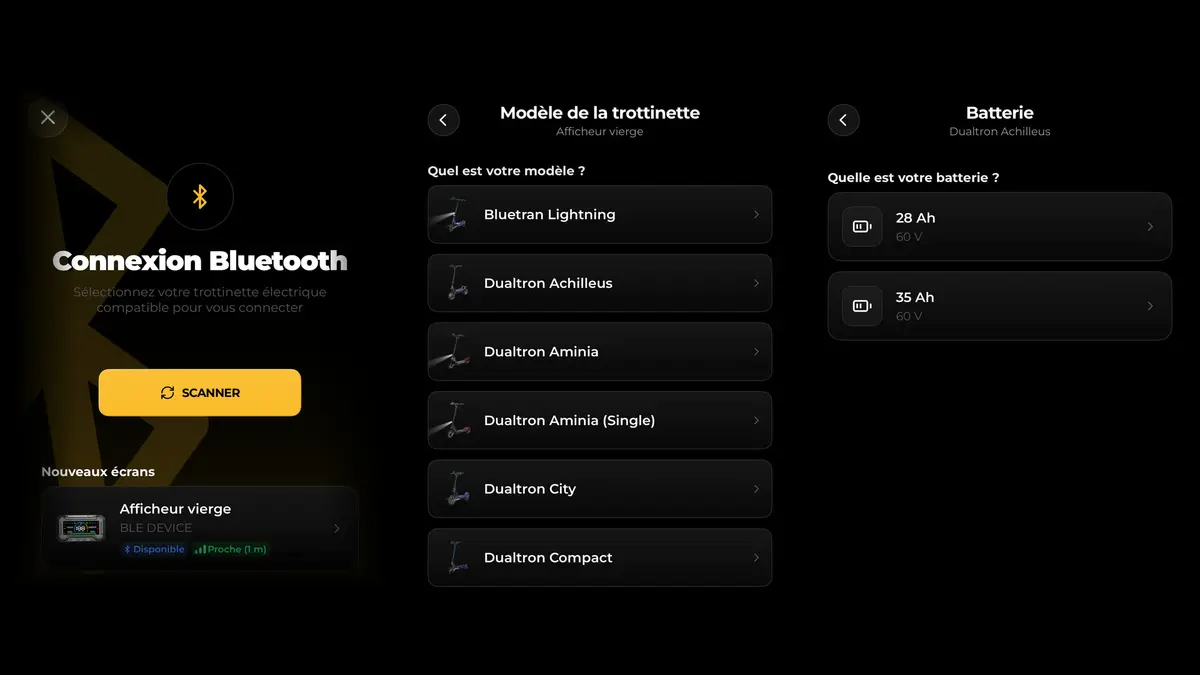
A brand-new Dualtron display appears in a “New displays” section, at the top of the Bluetooth Connection page. Tap it, choose your scooter's model, then its battery. EyeX writes the whole configuration, from the motor to the Bluetooth name, including the wheel, the battery, the range and the torque, and the scooter is ready.
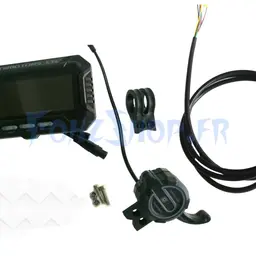
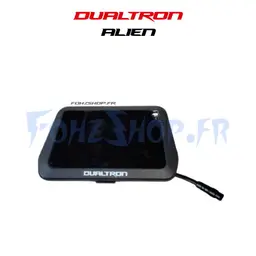
Replacing the display on a scooter you already had? Go through “I replaced my display” on the vehicle page. A guide walks you through it, then EyeX sets up the new screen and links it to the same scooter, with its rides, statistics and history. The link is only made once the setup has succeeded, and a History tab records the date of each display change. You will find our replacement displays in the electric scooter displays category.
Dashboard, ride screen and BMS data
You can lay out the dashboard however you like. It brings together the speedometer, quick actions and battery, power, temperature, distance, range and system error tiles[1]. Full-screen mode adds GPS speed, average speed, top speed and ride statistics[1].
New in 2.0.7, the ride screen opens from the gauge button at the top of the dashboard. It is designed to be read at a glance, in portrait or landscape. Every slot can be customised: power, voltage, temperature, range, consumption, duration or odometer.
The dashboard also shows a speed limit sign, road by road. The limits come from OpenStreetMap data, a collaborative map where the maximum permitted speed of each road is entered by contributors[3]. The figure turns red if you go over it, and a flashing alert can be set. Away from known roads, the sign disappears. It helps you, but only the road signs are authoritative.
Fault warning lights
A red spanner lights up in the speed tile as soon as the motor, the controller, the throttle or the Hall sensor reports an error. The ride screen adds a BMS fault warning light on the Alien family and a controller overheating warning light, from 110 °C.
Battery data
The BMS is the circuit that monitors and protects the battery. On compatible models, EyeX reads its detailed data: cells, temperatures, balancing and diagnostics[1]. 2.0.7 adds several more, on batteries that provide them.
| Data | What it tells you |
|---|---|
| State of health | Where the battery stands compared with when it was new. |
| Charge cycles | How many times the battery has been charged since the start. |
| Temperatures | The temperature of the three probes and the highest ever recorded. |
| Monitoring alarms | Battery fault, BMS fault, voltage fault or smoke detected. |
| Protection History | How many times each protection has been triggered: short circuit, overvoltage, overheating and others. |
GPS, rides and theft protection
EyeX shows a GPS map on the dashboard and in full screen. Each vehicle has its own page, with its address, when it was last detected, its battery and its distance[1]. The history keeps your recorded rides, with the map, distance, duration, speed and battery used[1].
2.0.7 gives each ride its own telemetry page: the route coloured by speed, the ride summary and speed, power and battery charts you can scrub with your finger. You will find it under Profile, Vehicles tab, Telemetry card.
If your scooter has a GPS tracker, EyeX shows its history, with rides, stops, a daily summary and an animated replay. The tracker is paired using its IMEI number, or by connecting to your manufacturer account, which retrieves the GPS data available[1].
Everyday protection
- Remote lock. The motors cut out when you walk away from the scooter with your phone[1]. In 2.0.7, the decision is based on the time actually spent out of range, a quick getaway is detected sooner, and everything works even with no network.
- 4-digit PIN code on the vehicle[1].
- Theft reporting and remote blocking after a theft[1]. When a scooter reported stolen connects, its motors are blocked, the code lock is switched on and automatic unlocking is suspended. EyeX works with Minimotors, the maker of Dualtron, to strengthen theft protection[1].
- Blocking other accounts, new in 2.0.7. You can stop any other EyeX account from connecting to your scooter. The person concerned sees an “Access denied” screen.
- Automatic unlocking and Bluetooth reconnection, which you switch on or off depending on how you use the scooter[1].
Widgets, Apple Watch and the rest of the update
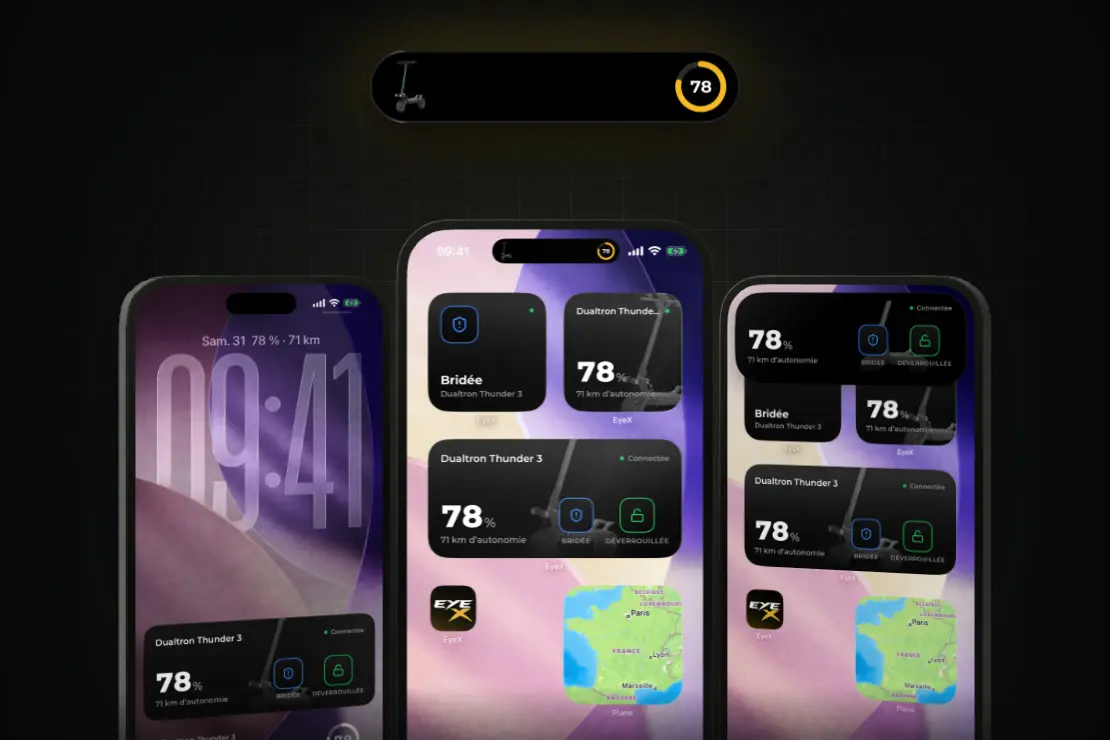
With 2.0.7, you no longer need to open EyeX for everyday actions. The Home Screen widgets show the scooter, its battery and its range, with buttons to turn on speed limiting or lock it. They work even when the scooter is disconnected: EyeX connects to it by itself, then sends the command[1].
- Live Activity and Dynamic Island on iPhone. When EyeX goes into the background, the Lock Screen keeps the scooter in view, and the Dynamic Island shows its photo and battery.
- Control Centre from iOS 18, with speed limit, motor lock and LED buttons. Unlocking requires Face ID or the phone's passcode.
- On Android, 2.0.7 brings widgets and a control notification while connected, to limit speed, lock or disconnect. On 17 November 2026, Google Play still offers 2.0.6[2].
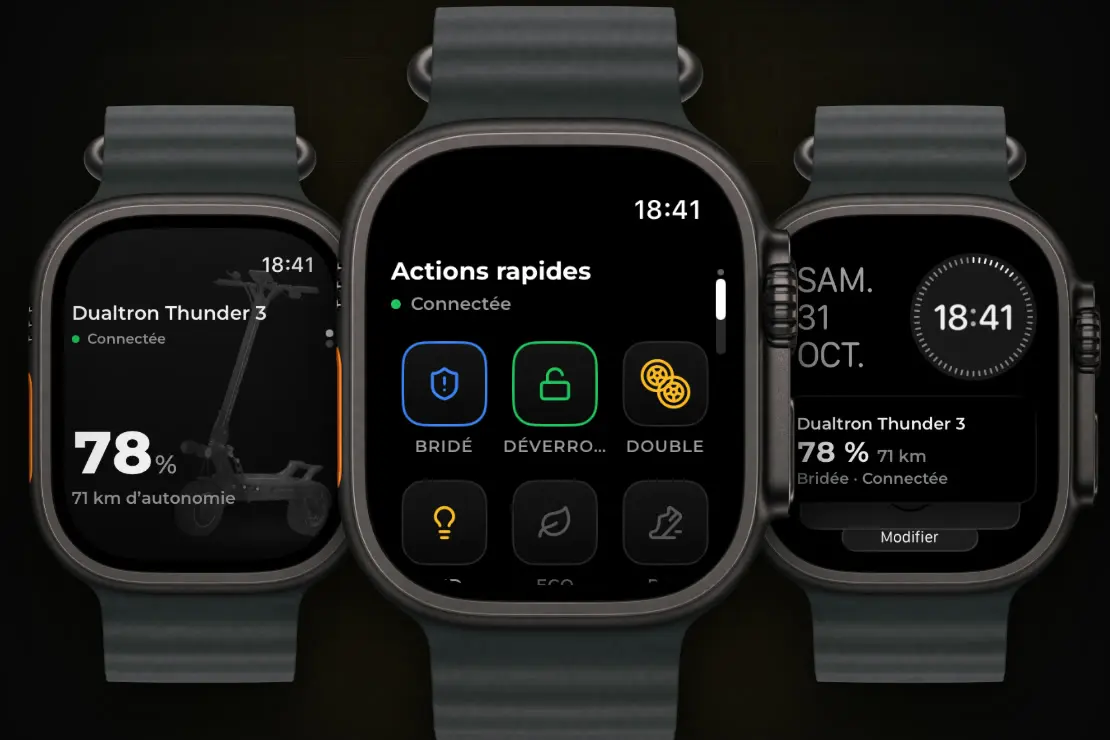
EyeX also comes to the Apple Watch, from watchOS 10[1]. The Scooter page shows the name, status, battery and range. Turn the Digital Crown to move to the Quick Actions page, which brings over the buttons from your dashboard, in your order, to limit speed, lock, switch on the LEDs or change mode with a tap. The battery can also sit on the watch face, as a complication.
The other new features
- Community, with a feed per country, the accounts you follow, an Official feed, search and translation of posts.
- More than 40 badges to unlock as you use EyeX[1], with a notification at every level.
- Push notifications, which you can turn off category by category.
- 22 more languages, for 26 in total, widgets and Apple Watch included[1].
- A smoother app, with animations at up to 120 frames per second on compatible iPhones, and haptic feedback on touch, which you can turn off.
- A Forgot password button under “Sign In”, which sends a link by email.
- Dozens of fixes. The Dualtron Sonic Oriens, for example, is now recognised with all the settings of the Alien family.
How do you install EyeX and get started?
EyeX can be downloaded from eyex.app. On iPhone, the EyeX App Store page shows a free download and requires iOS 15.1 or later, and watchOS 10 for the watch[1]. On Android, EyeX has its own Google Play page. On 17 November 2026, it still shows version 2.0.6, updated on 30 August 2026[2]: the new features described here apply to 2.0.7 on iPhone.
- Install EyeX and create your account.
- Switch the scooter on, allow Bluetooth and location when the app asks, then tap Scan.
- Choose your scooter from the list. A brand-new display appears under New displays.
- In Settings, set the default speed limiting to the speed allowed where you live before riding on public roads.
- Tap the microchip icon to find out whether a firmware update is available.
- Lay out your dashboard, then add the widgets or the watch if you wish.
- If anything is unclear, ask Lūba.
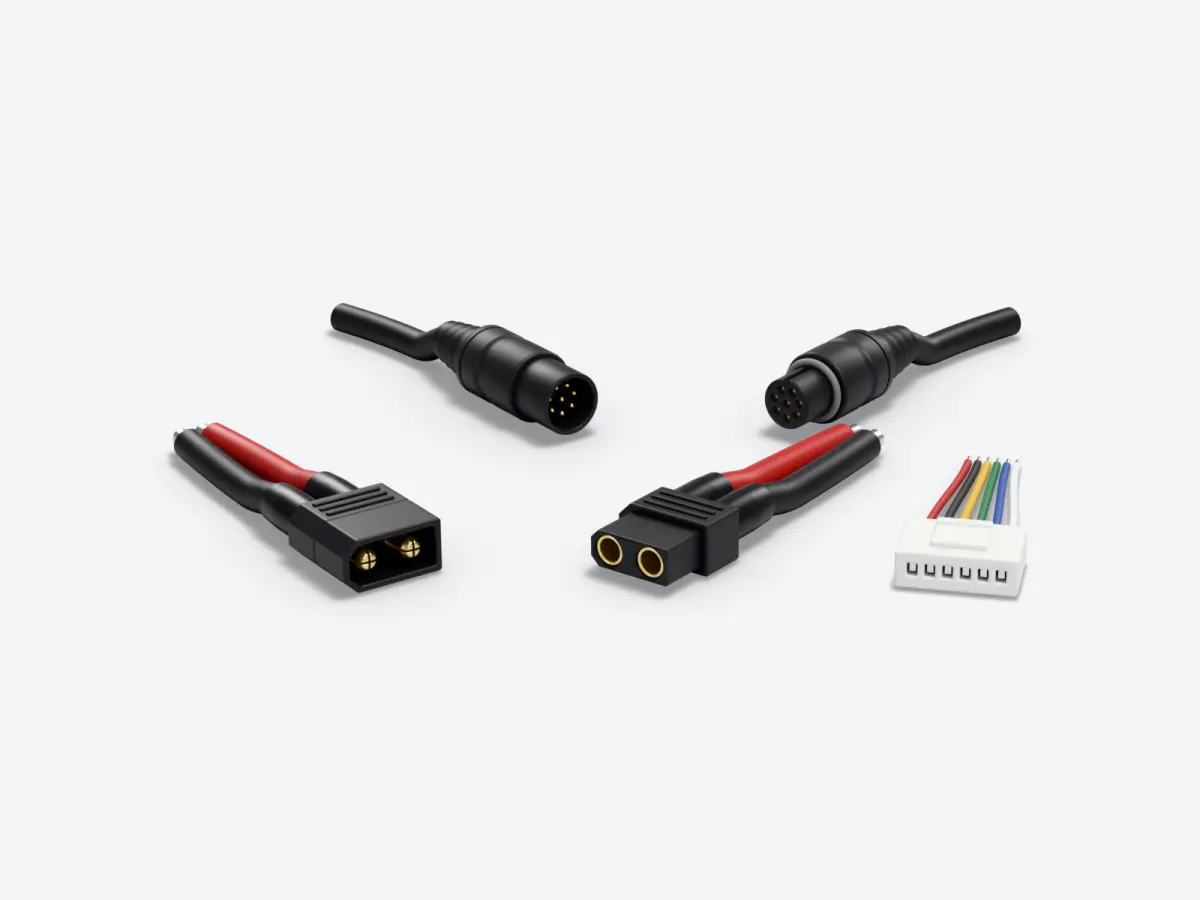
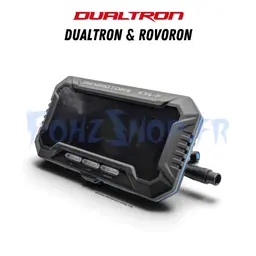
Before replacing a screen, note the exact model of your scooter and of your current display. Not all screens have the same connector. The product page lists the compatible models, and Lūba can tell you which part suits your scooter.
Sources
- Apple, App Store, listing and version history, version 2.0.7 of 2 November 2026, checked on 17 November 2026, EyeX, Dualtron & Rovoron
- Google, Google Play, app listing, version 2.0.6 updated on 30 August 2026, checked on 17 November 2026, EyeX
- OpenStreetMap, Wiki, French-language page, checked on 17 November 2026, FR:Key:maxspeed
About the author

Benjamin Gayaud
Managing director of FōhzShop
He runs FōhzShop and develops EyeX, the app for Dualtron and Rovoron scooters. He personally tests the electric scooters the shop sells.
Read next
What's new8 min read
Odyssr Alpha electric scooter: real-world range, charging, brakes and maintenance
The Alpha is the Odyssr electric scooter in our catalogue: a Dualtron Thunder 2 with a reworked design and a 72 V battery of 3,053 Wh. Real-world range, charging time, brakes, tyres, settings and parts: here is what you need to know.
Safety5 min read
E-scooters in London and on trains: TfL and National Rail rules
On the Transport for London network, e-scooters are banned even when folded, with a fine of up to £1,000. On trains, each train company decides. The reason: the fire risk from batteries. The rules as they stand on 17 November 2026.
Maintenance9 min read
Electric scooter tyre pressure: the chart by wheel size and by model
The tyre pressure for every scooter in our catalogue, taken from the manufacturer's manual, in psi and bar, sorted by wheel size. Plus the effect of weight and cold, how to read the sidewall and a routine for checking.