Dualtron EY2, EY3, EY4 or EYA display: differences, P settings and compatibility
EY2, EY3, EY3 Connect, EY4 or EYA: how to identify the display on your Dualtron or Rovoron, set its P1 to P14 parameters, choose the right cable and update its firmware safely.

Benjamin Gayaud
11 min read
Technical
EY3 or EY4? Hold MODE to set P1 to P14.
The key points
On a Dualtron or a Rovoron, the display does far more than show your speed. It switches the scooter on, changes the power level, flags faults and holds a good share of the settings. Minimotors has brought out several generations, named EY1, EY2, EY3, EY4 and EYA. They do not look alike, they are not set up the same way and they cannot be swapped for one another. This guide helps you identify yours, understand its P settings and replace it without mistakes.
95 × 36 mm
for the EY4 screen, about 4.2 inches
47 × 50 mm
for the small EY2 screen, which is set up through the app
3.5 inches
for the EYA colour TFT screen, fitted to the Dualtron Sonic Alien
14
P settings, from P1 to P14, on the EY3 Connect and on the EY4
- The name of the display is given in your scooter's manual, on the “Display” line.
- The EY4 and the EY3 Connect are set up on the handlebars, through the P menu. The EY2 and the EYA are set up through the app.
- A display is chosen for a specific model, with the right cable and the right connector.
- A firmware update is done with the scooter stationary and the battery charged, without ever switching it off.
EY2, EY3, EY4, EYA: what are the differences?
Dualtron's official manuals describe each display with a diagram and a list of its functions. Comparing them, you quickly see what changes from one generation to the next: the size and shape of the screen, the buttons, the connection to the app and the way a fault is shown.
| Display | Screen and buttons | App | Settings | Faults shown |
|---|---|---|---|---|
| EY2 | Small 47 × 50 mm screen, a single button for power and speed modes[3] | Yes, the Bluetooth symbol appears on screen[3] | Through the app only[3] | A service symbol, the code is read in the app[3] |
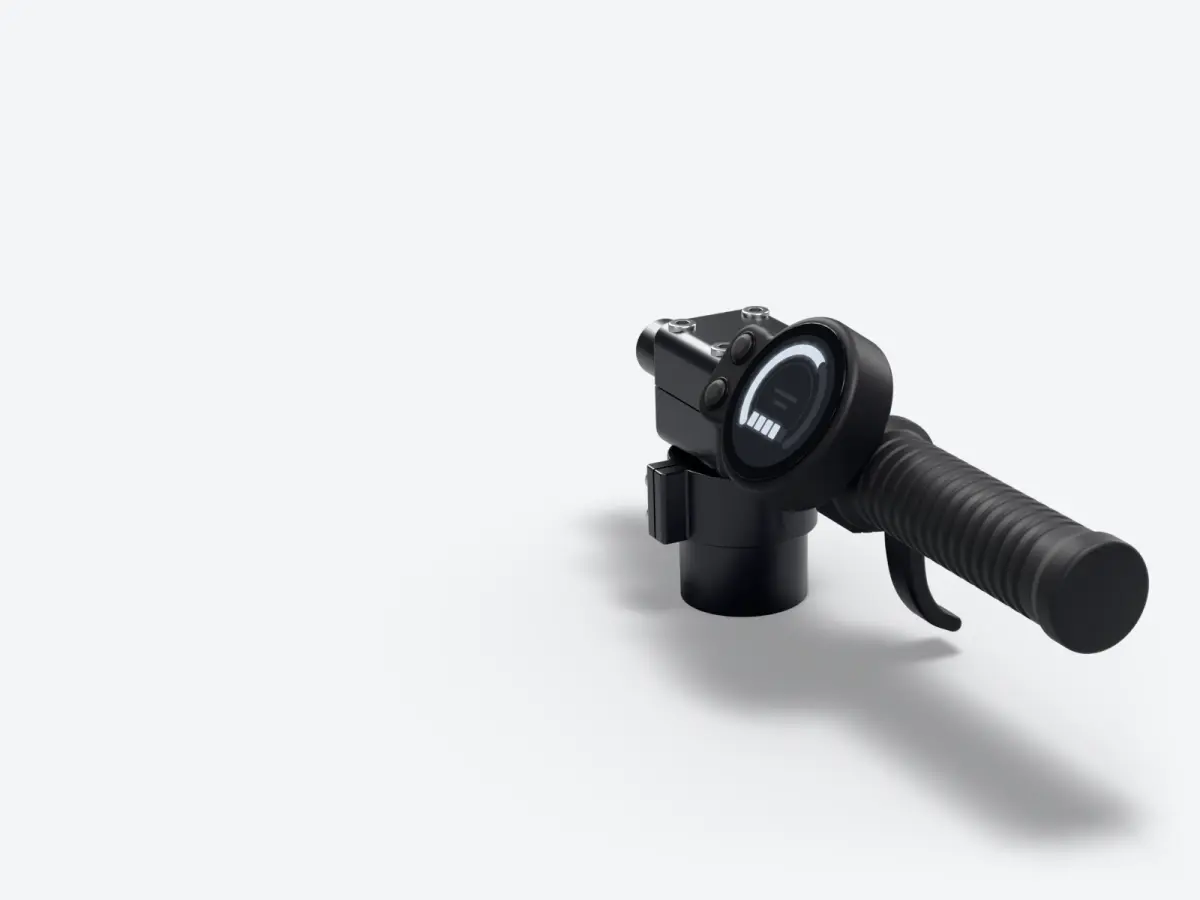
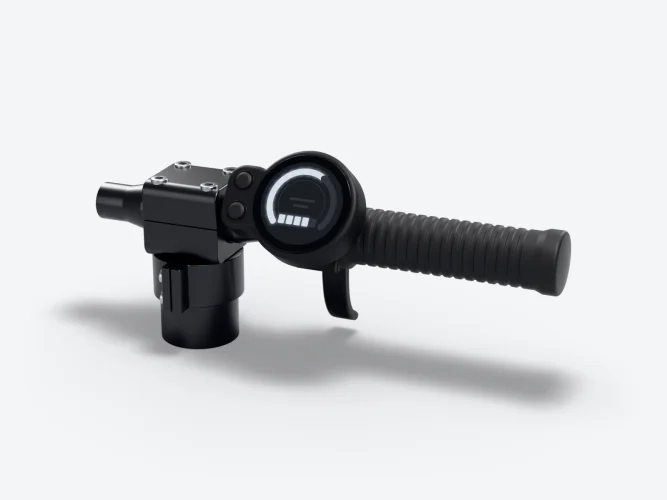
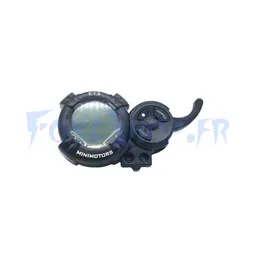
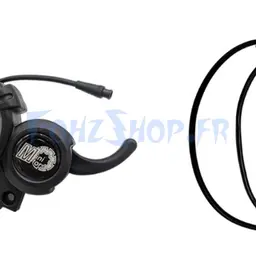
| EY3 Connect, “NEW EY3” at Dualtron | Round screen built into the trigger housing, power, SET and M buttons[2] | Yes[2] | On the handlebars, from P1 to P14[2] | A spanner-shaped symbol, the code is read in the app[2] |
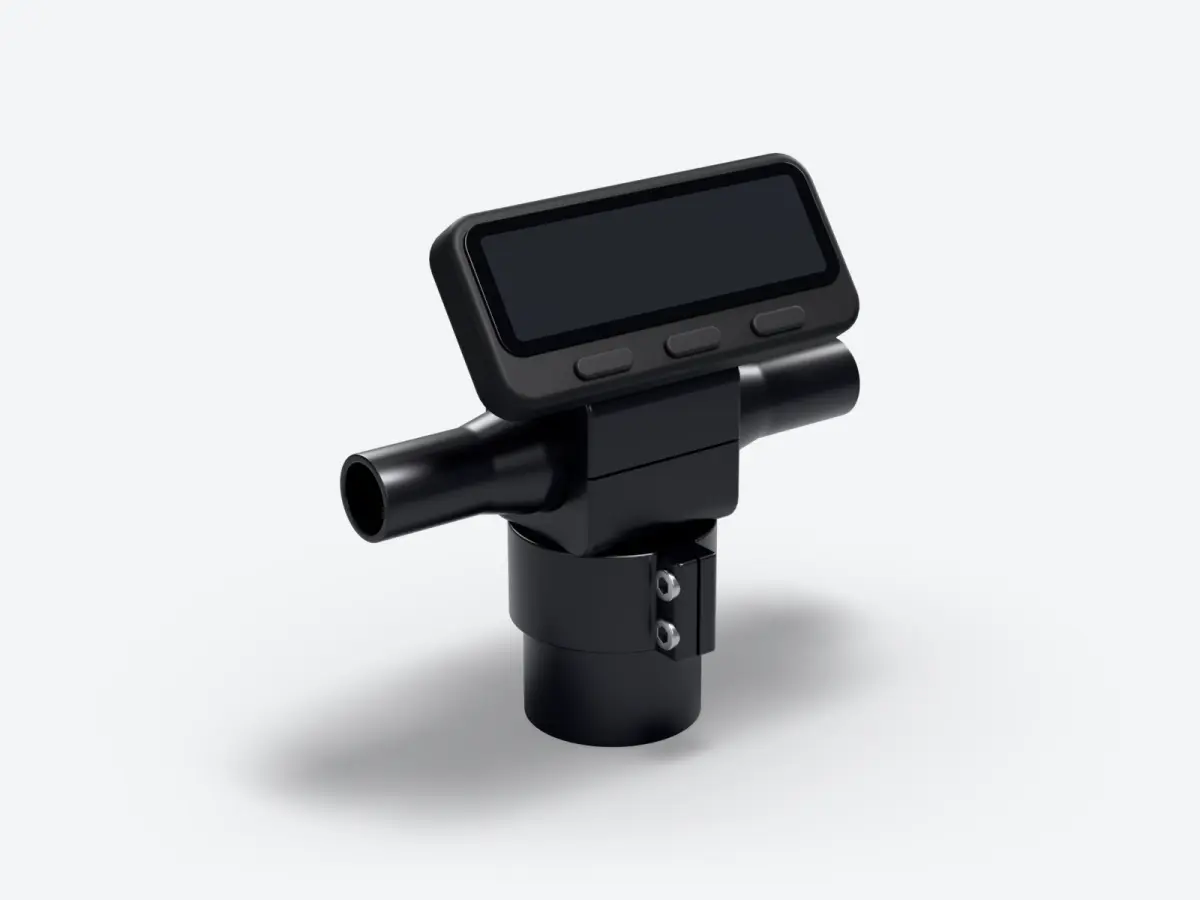
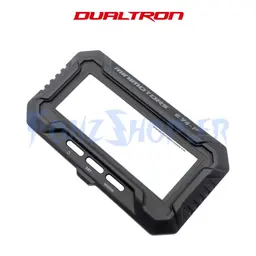
| EY4 | Wide 95 × 36 mm screen, about 4.2 inches, POWER, SET and MODE buttons[1][5] | Yes, Bluetooth[1] | On the handlebars, from P1 to P14[1] | Dedicated symbols: throttle, motor, controller and overheating[1] |
| EYA | 3.5-inch colour TFT screen, buttons on a separate control unit[4] | Yes, the Minimotors app[4] | Through the app, SAFE mode for example[4] | Not specified in the manual |
The name EY3 Connect does not appear in the manuals. Dualtron calls it the “NEW EY3”, an EY3 that connects to the app[2]. Our catalogue calls it the connected EY3, and the EyeX app calls it EY3 Connect[11]. There is also a “non-connected” EY3, which our catalogue sells separately. Without Bluetooth, it does not link to any app: EyeX, for example, only works with a Bluetooth screen[11]. The two look very much alike, which is why orders go wrong.
What about the EY1?
The EY1 exists too. Dualtron describes it as a Bluetooth LED display, compatible with the app and with NFC, on the Dualtron Dolphin[7]. It remains specific to that model.
How do you identify your display?
The safest way is to look at your scooter's manual. In the specifications table, the “Display” line gives the exact type, for example “EY4 LCD Bluetooth Display” on the Thunder 3[5]. In other manuals, it is the handlebar diagram that names it, such as “New EY3” on the Victor Luxury[6]. The manuals are freely available in Dualtron's download centre[10], and those for the EY1 to EY4 screens are also on our Documents page. If you no longer have it, the display itself will tell you.
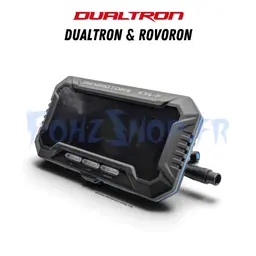
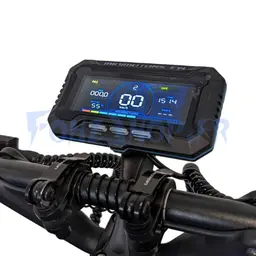
- The screen is wide and rectangular, with three buttons marked POWER, SET and MODE underneath. It is an EY4[1].
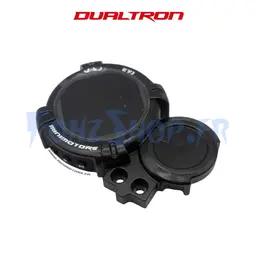
- The screen is round, built into the trigger housing, with “EY3” printed above it. It is an EY3[2]. If it shows a Bluetooth symbol and connects to the app, it is an EY3 Connect.
- The screen is small, almost square, and has only one button. It is an EY2, the one on the Togo and Pop models[3][8][9].
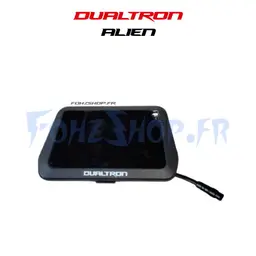
- The screen is in colour, on a Dualtron Sonic Alien. It is an EYA[4].
Which display on which scooter?
Here is what the official manuals, the original wiring diagrams and our catalogue show, model by model. Versions change over the years. The 2023 Victor has an EY3 Connect, then an EY4 version arrived, hence the “Victor EY4 2025” in parts references. In the same way, the Forever V2 has an EY3 on its original wiring diagram and the Forever V3 an EY4. Always check against the manual for your own scooter.
| Display | Models fitted with it |
|---|---|
| EY1 | Dualtron Dolphin[7] |
| EY2 | Dualtron Togo, Togo Plus, Togo Limited, Pop and Popular[8][9][10] |
| EY3 Connect | Dualtron City, Aminia, Mini Special Long Body, Forever V2, Eagle, Spider 2, Victor, Victor Luxury, Rovoron R5 and R7[6][10] |
| EY4 | Dualtron Thunder 3, Thunder 2 2024, Achilleus, X Limited, Victor Limited, Victor Luxury+, Victor EY4 2025, Ultra 2 Upgrade, New Storm, Storm Limited, Spider Max, Forever V3, Togo Pro, Togo Max, Rovoron S7[5][10] |
| EYA | Dualtron Sonic Alien[4] |
How do you set the P parameters on the EY3 and EY4?
The EY3 Connect and the EY4 share the same settings menu, numbered from P1 to P14[2][1]. To enter it, press and hold the MODE button. The same long press exits the menu, and the display returns to the main screen by itself after 30 seconds without any input[1]. On the EY2, you find almost the same functions, but they are all set from the app[3].
| Button | Long press | Short press |
|---|---|---|
| POWER, or the power button on the EY3 | Switches the scooter on or off[1] | Changes speed mode, from 1 to 5 on the EY3[1][2] |
| SET | Switches ECO mode on or off[1] | Shows battery voltage or percentage[1] |
| MODE, or M on the EY3 | Enters or exits the P menu[1] | Switches between total distance and time[1] |
| Setting | What it does | Values according to the manual |
|---|---|---|
| P1, kick start | The scooter will not start on the throttle alone, you have to push off first | Off by default, the PAS symbol lights up when it is on[1] |
| P2, soft start | Makes pulling away punchier or smoother | From 0, the most abrupt, to 5, the smoothest. Each step adds 0.5 seconds of progressive build-up. 2 by default, that is 1 second[1] |
| P3, EBS motor braking | Sets the strength of electric braking | From 0, no EBS, to 5, the strongest. 1 by default[1] |
| P4, ABS | Switches electronic ABS on or off | 0 off, 1 on. 0 by default[1] |
| P5, riding mode | Chooses the torque available | Battery save at 50% of torque, Comfort at 75%, Climbing at maximum, the default setting[1] |
| P6, speed limit | Limits speed to a percentage of the maximum | From 5 to 100%. 100% by default[1] |
| P7 and P8, code | Asks for a code before riding, then lets you change it | Initial code 0000. The scooter can unlock by itself when the owner recognised by the app comes close[1] |
| P9, SAFE mode | Locks the throttle after a time stationary, to prevent unintended starts | From 0 to 300 seconds, 0 turns it off[1] |
| P10, cruise control | Holds the speed without keeping the trigger pressed | Off by default. It engages after more than 8 seconds at a steady speed[1] |
| P11, BMS protection | Switches to ECO mode below 20% battery to avoid a cut-out | Off by default. Once triggered, ECO cannot be switched off by hand as long as P11 stays on[1] |
| P12, auto power-off | Switches off the scooter when it is not in use | From 1 to 30 minutes. 5 by default[1] |
| P13, brightness | Sets the screen backlight | From 0 to 5. 5 by default[1] |
| P14, units | Chooses km/h or mph | 0 for km/h, 1 for mph. 0 by default[1] |
Two practical points. In Climbing mode, Dualtron warns that riding for a long time heats up the motor, which can then switch to ECO[1]. And the initial code 0000 is known to everyone. If you turn on P7, change it straight away with P8.
Changing the code with P8, step by step
- Open the P menu with a long press on MODE and go to P8.
- Press POWER. The screen shows 1: enter the current code, 0000 to begin with, and confirm with POWER[1].
- The screen shows 2: enter the new code and confirm with POWER[1].
- The screen shows 3: enter the new code again and confirm with POWER. The code is changed[1].
- Keep a note of it somewhere safe. The owner can also reset it from the app, without the old code[1].
Replacing a display: compatibility and connectors
A Minimotors display cannot be replaced by just any other. Three things matter. First, the generation. An EY4 and an EY3 have neither the same shape nor the same cable. Next, the model, because the wheel, the voltage and the motor are set at the factory for each scooter[1]. And finally the connector, which has changed from one version to another.
The connectors you will come across
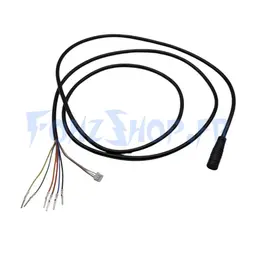
- EY3 with a 6-pin quick connector, on the Forever, Forever Limited and Mini Special.
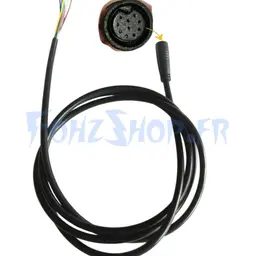
- EY3 with a 9-pin cable, on the City, the Mini models, the Mini Special, the 2024 Victor and the Victor Luxury.
- First-generation EY4, with its own cable, known as V1, on the Thunder 2, the Thunder 3, the 2023 Achilleus or the Victor Luxury+.
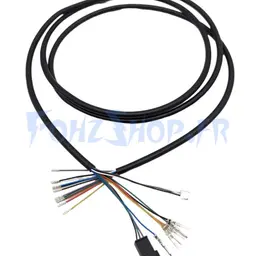
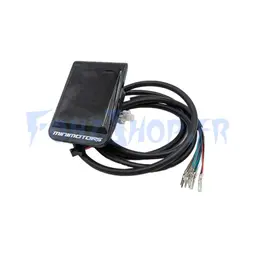
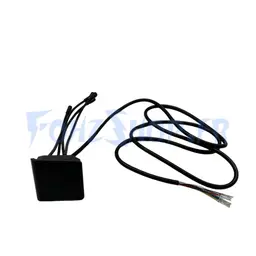
- EY4 V2, with a 10-point cable and a quick connector, on the Thunder 3, the 2023 Achilleus, the Forever Limited, the Victor Limited or the Victor EY4 2025.
- Cables specific to certain models, such as the EY4 cable for the Togo Pro and Togo Max or the EYA cable for the Sonic Alien.
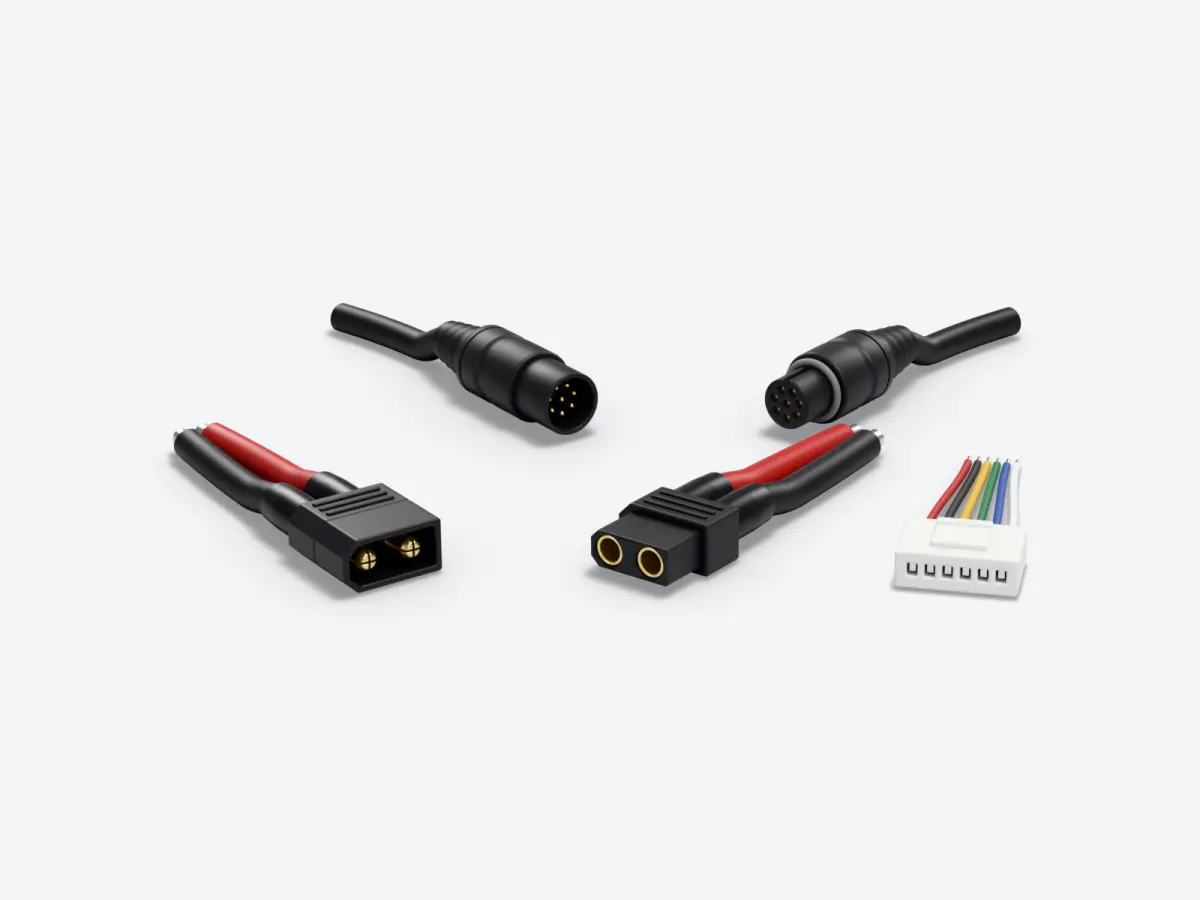
These variants come from the parts references we sell, and the list of compatible models is shown on each product page. Count the pins on your plug and compare its shape with the photo of the part before you order. A connector that does not go in easily is the wrong one. Never force it.
Upgrading from EY3 to EY4
On several models supplied with an EY3, such as the City, the Spider 2 or the Victor, a complete EY4 V2 kit exists, with its mounting arm. It is not a simple screen swap, the cable and the mounting change too. Here again, the kit's product page lists the models it is designed for.
How do you update the firmware safely?
A connected display contains a small piece of software, the firmware. Dualtron makes it a maintenance item: in the maintenance table of its display manuals, one line asks you, once the scooter is connected to the app, to update the firmware to the latest version[3]. The operation is safe if it runs to the end. The risk is an interruption halfway through, which can leave the display stuck.
The manuals do not describe the procedure in detail. Here are the precautions we follow in the workshop.
- Charge the battery. Start with a full battery, or nearly full. A scooter that switches off partway through interrupts the update.
- Stay stationary. Do the update at home, with the scooter on its kickstand, never while riding or at the roadside.
- Keep the phone close by. It must stay within Bluetooth range for the whole operation. Charge it too and keep its screen on.
- Check the app and the connection. Use the latest version of the app and a stable internet connection.
- Never interrupt it. Do not switch off the scooter, do not close the app and do not stop the operation before it has finished.
- Restart only at the end. Wait for the success message, then switch the scooter off and on again and check your P settings.
As for the app, Dualtron states in its manuals that the display connects to the DUALTRON app[5]. There is also EyeX, the app developed by FōhzShop for Dualtron and Rovoron scooters with a Bluetooth screen: EY3 Connect, EY4, EYA and other connected Minimotors screens. It updates the display's firmware and can repair a stuck display[11]. Everything is explained in our article on EyeX 2.0.7.
Display fault: what does the symbol mean?
A symbol lighting up does not always mean the display needs replacing. More often than not, it is the display telling you about a fault somewhere else, in the throttle, the motor or the controller.
A thermometer
Overheating protection. Dualtron asks you to let the scooter cool down.
A spanner on the EY2 or EY3
The screen flags a fault without giving the cause. Open the app to read the error code.
Throttle, motor or controller
For these three faults, Dualtron refers you to the after-sales service or an authorised dealer.
Every error code and what to do about it is explained in our article on scooter error codes. For a repair, see our list of authorised repairers.
Your checklist before ordering a display
- Find the exact model and year of your scooter.
- Look up the display type in its manual, on the “Display” line.
- Photograph the display switched on and its plug disconnected.
- Count the pins on the connector and note its shape.
- Choose a display or kit whose product page lists your model.
- Fit it with the scooter switched off, without forcing the connector.
- Then check the P settings, or the app settings for the EY2 and EYA.
You will find our displays, kits and mounts in the displays section of our spare parts. If you are unsure about compatibility, send us your photos before you order.
Sources
- Dualtron, Download centre, EY4 display manual, accessed on 17 November 2026, EY4 Important information
- Dualtron, Download centre, NEW EY3 display manual, accessed on 17 November 2026, NEW EY3 Important information
- Dualtron, Download centre, EY2 display manual, accessed on 17 November 2026, EY2 Important information
- Dualtron, Download centre, Dualtron Sonic Alien manual, accessed on 17 November 2026, Alien Product Manual V2
- Dualtron, Download centre, Dualtron Thunder 3 manual, accessed on 17 November 2026, Thunder 3 Product Manual
- Dualtron, Download centre, Dualtron Victor Luxury 2023 manual, accessed on 17 November 2026, Victor Luxury Product Manual
- Dualtron, Download centre, Dualtron Dolphin manual, accessed on 17 November 2026, Dolphin Product Manual
- Dualtron, Download centre, Dualtron Togo manual, accessed on 17 November 2026, Togo Product Manual
- Dualtron, Download centre, Dualtron Pop manual, accessed on 17 November 2026, POP Product Manual
- Dualtron, Official website, download centre, User manual section and manuals for the models mentioned, accessed on 17 November 2026, Download Center
- Apple App Store, EyeX app listing, accessed on 17 November 2026, EyeX
About the author

Benjamin Gayaud
Managing director of FōhzShop
He runs FōhzShop and develops EyeX, the app for Dualtron and Rovoron scooters. He personally tests the electric scooters the shop sells.
Read next
Technical10 min read
Electric scooter charger: voltage, amps, fast charging and connectors
A charger's output voltage must be exactly the one intended for your battery, its current sets the charging time and its plug must match your charging port. Here is how to read the label, work out the charging time and spot a faulty charger.
Technical11 min read
Electric scooter controller: what it does, faults and replacement
The controller reads the throttle, the brakes and the motor sensors, then powers the motor over three phases. What it does, how to read its voltage and amperage, how to recognise a real fault and how to replace it without ordering the wrong part.
Technical14 min read
Electric scooter error codes: what they mean and how to fix them
E1, 80, 102, a red spanner or a thermometer: what each code shown on Dualtron, Rovoron, Odyssr, Teverun, Nami and InMotion displays means, according to their official manuals, with the part to check and what to do.